

News

Miro: A New Standard in Responsible Innovation

Miro: A New Standard in Responsible Innovation The Miro monitor arm is setting new benchmarks in sustainability. It offers a high-performance solution without compromising on environmental responsibility. Designed with careful material selection, local sourcing, and longevity in mind, Miro’s responsible approach to design and unique manoeuvrability set it apart from the competition. Sustainable Choices Miro is crafted from energy-efficient materials with a lower carbon impact....

Read more
HSE Advisor

Role Purpose Support in the development, implementation and maintenance of the company’s Health, Safety & Environmental policies, processes, operational procedures, and standards.  Ensuring best practice and championing a continually improving HSE culture within the business. Key Responsibilities Liaise with and provide support to all areas of the business to eliminate, mitigate or reduce identified HSE exposures. Partner with the production management team and team leaders,...

Read more
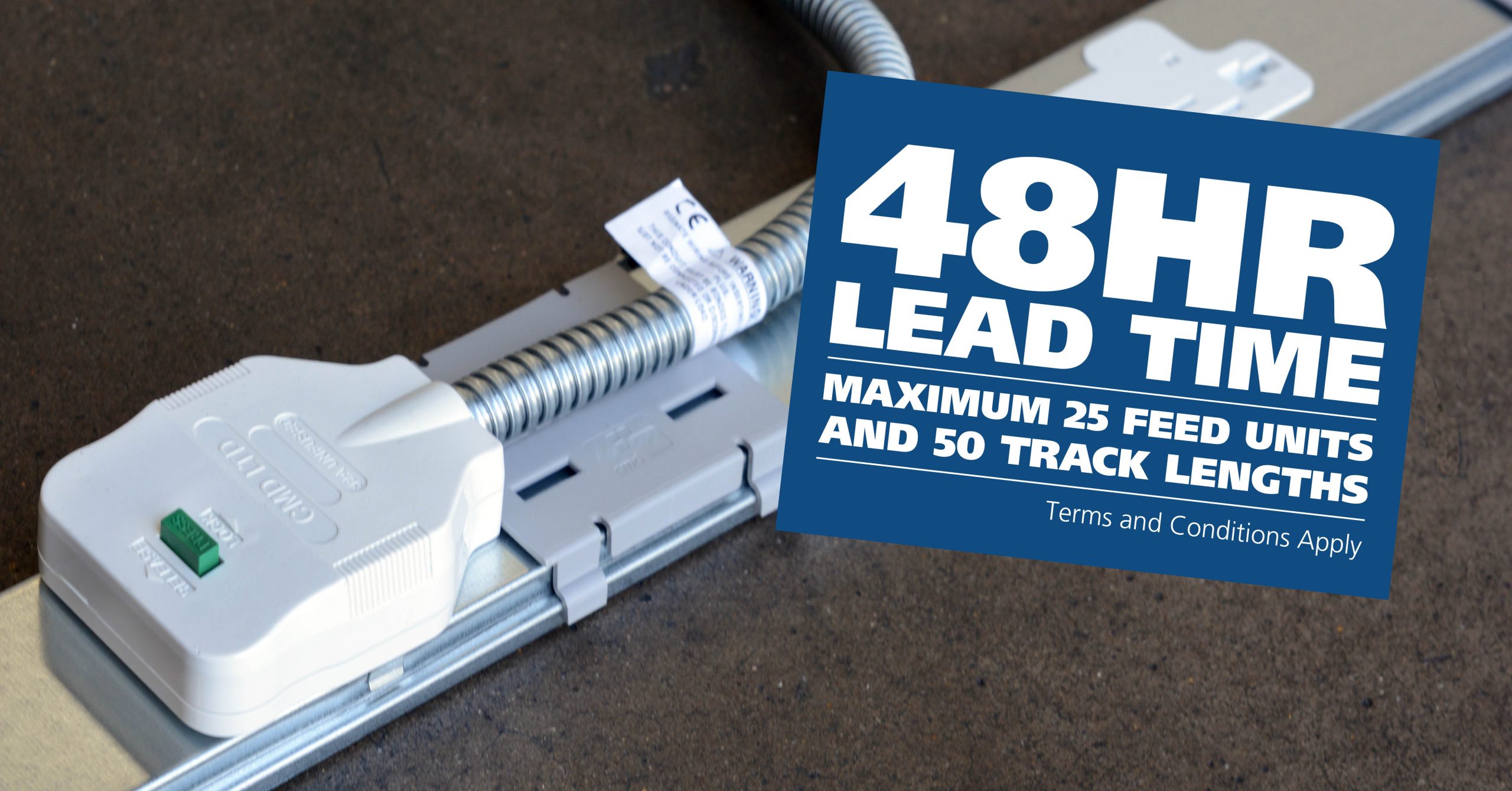
CMD Ltd LAUNCHES 48-HOUR TURNAROUND ON BETATRAK® RAPID ORDERING SERVICE

CMD Ltd, the specialist in power distribution systems, workstation power and monitor arms, has launched a rapid ordering service for its Betatrak® underfloor powertrack distribution systems and accessories, with a commitment to delivering within 48-hours of an approved purchase order*. The service enables customers to order up to 50 lengths of Standard or Clean Earth (C/E) low noise Betatrak, along with up to 25 feed...

Read more
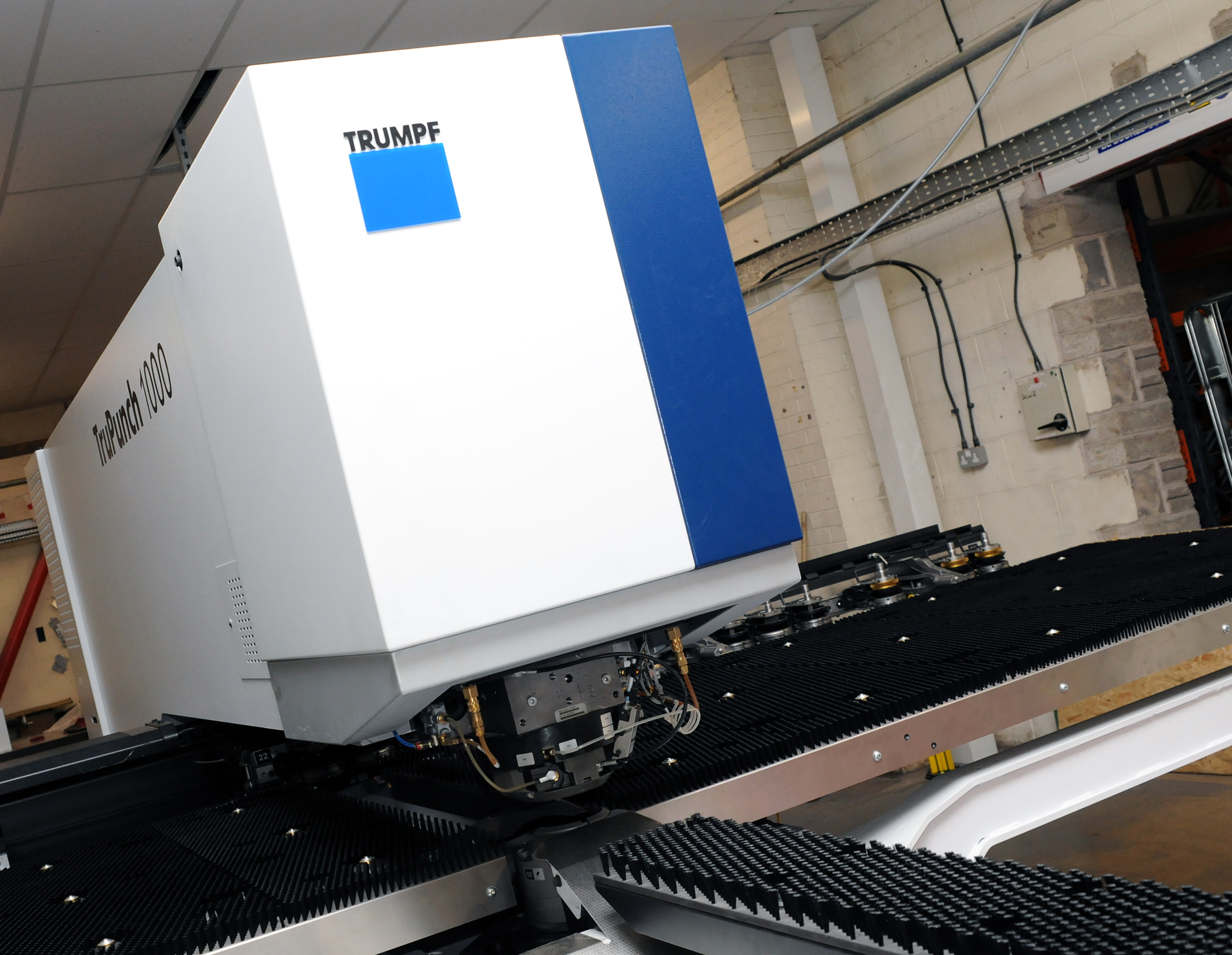
CMD INVESTS £1/4 MILLION IN NEW MACHINE AS PART OF FACTORY UPGRADE

We have invested in a new £1/4m TRUMPF CNC metal punch as part of an asset renewal strategy for our UK manufacturing capability. The new machine will be used in the production of a wide variety of our power distribution systems and workstation power products at our Rotherham factory. Suitable for handling sheet metal between 0.9mm and 3.0mm thick, the new machine will replace one...

Read more
CMD CATALOGUE PROVIDES TECHNICAL POWER DISTRIBUTION GUIDE

CMD Ltd has released a new catalogue, providing an easy to follow technical guide to our power distribution systems and plug and play desk modules. Detailing CMD’s full range of UK-manufactured power distribution systems and plug and play desk modules, the catalogue will be a helpful source of information to M&E engineers and contractors alike to understand how our power distribution systems connect together and...

Read more
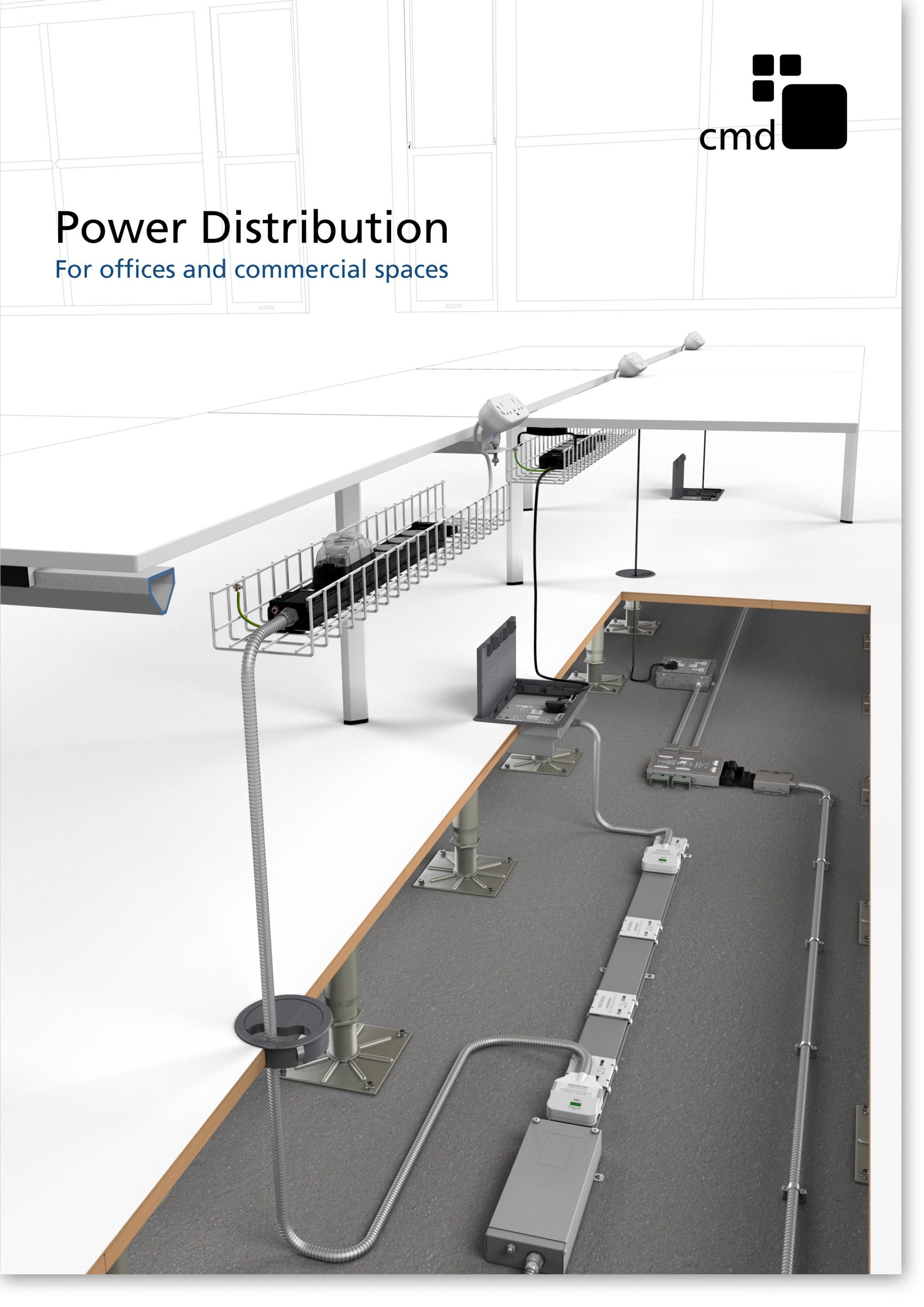
Power Distribution Catalogue
CMD Ltd PLAYS ESSENTIAL ROLE IN ELECTRICAL FIT OUT AT LONDON’S PRESTIGIOUS OFFICE DEVELOPMENT

CMD Ltd, specialist in workplace connectivity and ergonomic solutions, has provided a flexible and high-quality power distribution network for The Ray, a prestigious office development in London’s Farringdon. Well-known for being the former site of The Guardian newspaper, The Ray now stands as an 83,000ft² office development characterised by a modernised warehouse aesthetic, with level two now occupied by a global social media company. The...

Read more

The Ray
CMD plugs in to european opportunity with Schuko Capsule unit launch

CMD Ltd, the specialist in power and connectivity solutions for commercial environments, has launched a Schuko version of its popular fixed format Capsule workstation power module for export to mainland Europe and beyond. A popular on desk power module comprising two sockets and dual USB (type A and C) chargers, CMD’s Capsule unit is already widely specified in the UK as an off-the-shelf workstation power...

Read more
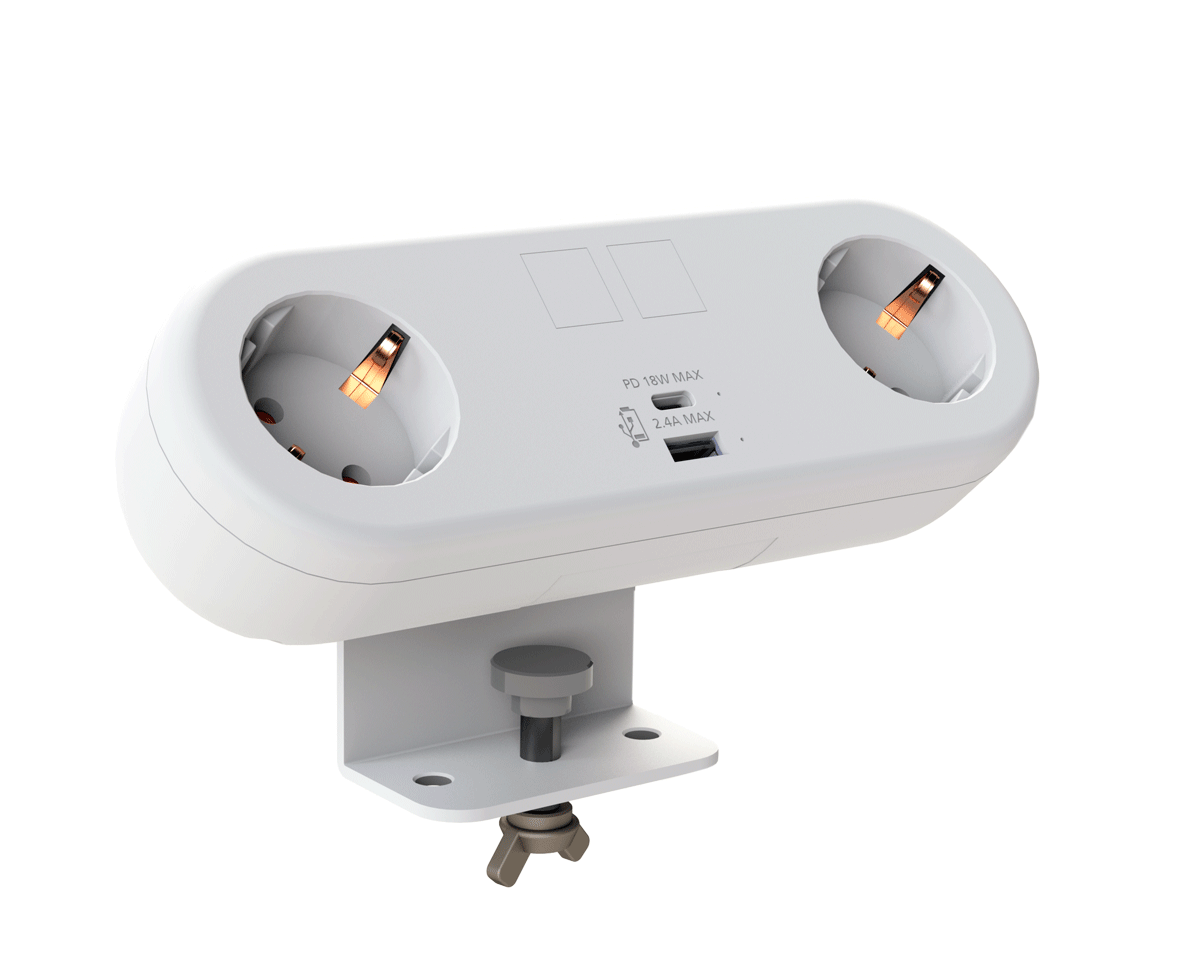
CMD White Schuko Capsule Desk Power Module
CMD LTD EXTENDS MONITOR ARM RANGE WITH THE LAUNCH OF REACH PLUS

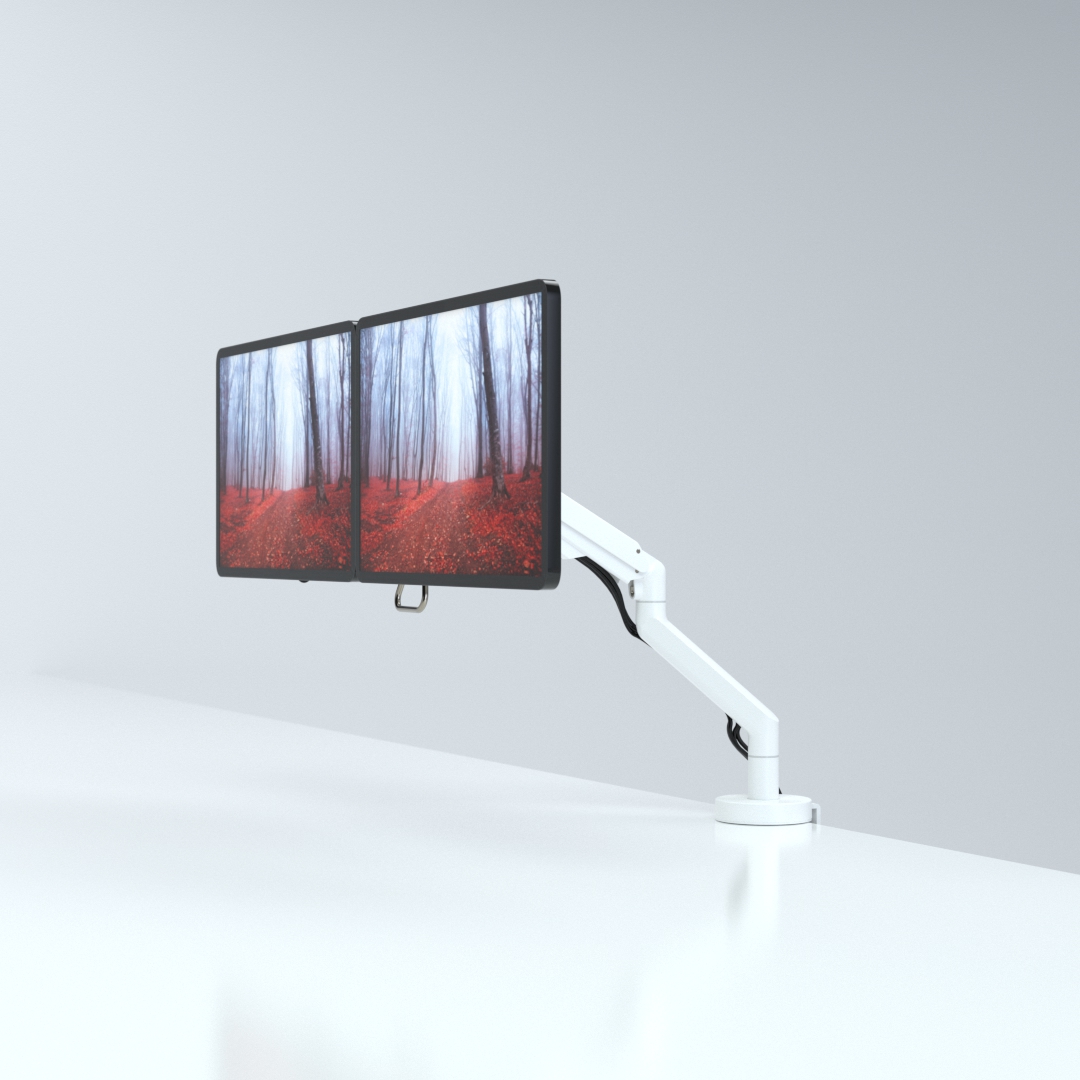
CMD Ltd, the specialist in ergonomic and connectivity solutions for commercial interiors, has completed its Reach monitor arm range with the launch of the Reach Plus. Available in single or dual screen options, the Reach Plus has been designed to provide an ideal solution for both single and dual screen workstation configurations, or can be used with next generation of large format curved screens. Suitable...

Read more
CMD Ltd DEMONSTRATES THE ART OF POWER DISTRIBUTION AT THE UNIVERSITY OF WARWICK

CMD Ltd, the specialist in workplace connectivity and ergonomic solutions, has provided Betatrak busbar power distribution and a range of electrical accessories for two major capital investment projects at the University of Warwick. Designed by Fielden Clegg Bradley Studios, the £33 million Faculty of Arts building is a showpiece development comprising four interconnected structures set around a central atrium, which will enable inter-disciplinary collaboration across...

Read more

University of Warwick
CMD BRINGS HARMONY TO COVENTRY UNIVERSITY RESEARCH FACILITIES

CMD Ltd, the specialist in power distribution solutions and workstation power and ergonomics, has provided under desk and on desk power modules for the refurbishment of three Coventry University research buildings. Located on Coventry University Technology Park, a business park designed to encourage collaboration between the university and knowledge-based businesses, the three buildings are being repurposed as office accommodation for university research teams. The refurbishment...

Read more

Coventry University

7 Tips for Choosing a Wireless Intercom for the Elderly?

As populations age, communication at home is becoming a safety and independence issue. The World Health Organization projects that one in six people worldwide will be aged 60 or older by 2030. Many older adults also prefer familiar surroundings. AARP’s 2021 Home and Community Preferences Survey found that 77% of adults aged 50 and above want to remain in their current homes.

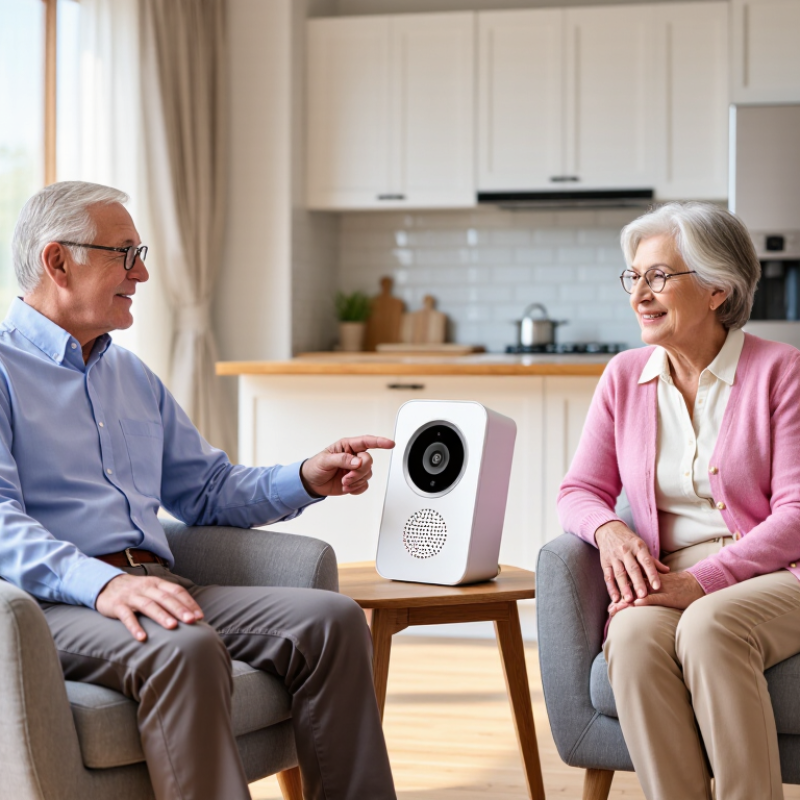
That preference gives the Wireless Intercom For Elderly a practical role. A clear voice link can connect a bedroom, kitchen, entrance, or caregiver’s room without requiring a smartphone. Imagine an older user pressing one large button beside the bed. The response should sound immediate, not distant or confusing. Volume, range, battery life, privacy, and emergency usability all matter.

Technology is only part of the decision. Joseph Coughlin, director of the MIT AgeLab, said, “The future of aging is not about technology. It’s about the human experience.” His point deserves attention. A device may have impressive specifications yet fail beside a noisy kitchen or during a power outage. This guide examines seven practical tips for choosing a Wireless Intercom For Elderly, using evidence from ageing research and real household needs. It also recognizes an uncomfortable truth: no product suits every family. Some recommendations may need adjustment after installation. A short trial can reveal more than a polished product page.

7 Tips for Choosing a Wireless Intercom for the Elderly?

Key Features of Wireless Intercoms for Elderly Users

Choosing a wireless intercom for an elderly person requires more than checking its advertised range. The World Health Organization’s World Report on Hearing states that over 1.5 billion people live with hearing loss worldwide. Clear voice transmission matters. Look for adjustable volume, reduced background noise, and tone controls. A louder speaker is not always clearer.

Seven practical checks deserve attention: large, high-contrast buttons; simple pairing; two-way communication; visual or vibration alerts; dependable indoor range; long battery life; and secure data handling. The NIDCD reports that nearly one in three adults aged 65 to 74 has hearing loss, while almost half of those over 75 experience difficulty hearing. Therefore, a bright call indicator may help when sound is missed. Test the controls with dim lighting and tired hands. Small buttons can become surprisingly frustrating.

Battery warnings should be obvious, and charging should not require delicate cables. A backup power option may be useful during outages, although wireless devices still depend on electricity. Check walls, doors, and floor levels before trusting the stated range. Real homes are messier than test rooms. Privacy also deserves attention; choose systems with encrypted connections and clear access settings. It is easy to focus on emergency calling, yet everyday comfort matters too. A short conversation should feel natural, not technical. According to WHO, untreated hearing loss can affect communication and social participation, so the best intercom supports routine contact without creating another difficult task.

7 Tips for Choosing a Wireless Intercom for the Elderly

Key features are ranked by suggested selection priority for elderly users. The percentages represent practical evaluation weights, not company or brand market data.

Prioritize clear two-way audio, simple controls, adjustable volume, dependable range, long battery life, visible alerts, and emergency-accessibility features. Test the intercom in the actual home environment before purchase.

Assessing Range, Signal Stability, and Home Layout

A wireless intercom for an older adult should be tested against the real home layout, not only its advertised range. The ITU-R P.1238-13 indoor propagation model identifies distance, frequency, walls, floors, and antenna height as major signal-loss factors. A bedroom behind two concrete walls may perform worse than a farther room with an open hallway. A claimed 300-foot range is often laboratory optimism.

The Wi-Fi Alliance reports that 2.4 GHz signals generally travel farther and penetrate walls better than 5 GHz signals. However, 2.4 GHz can face heavier interference from household devices. Check the connection from the caregiver’s room, kitchen, bathroom, and garden entrance. Listen for delayed audio, clipped words, or repeated alerts. Small details matter.

Metal doors, mirrors, reinforced concrete, and large appliances can create weak spots. Place the base unit away from routers, microwaves, and thick furniture. The National Institute of Standards and Technology has documented how indoor materials and human movement can change radio performance. A person standing between two units may briefly reduce clarity. I once treated a hallway as open space; a closed fire door proved my mistake. Test with doors shut. Test at night. Walk slowly through the home while speaking. The best location may not be the most convenient one, and a signal indicator cannot replace a real voice check.

Choosing Simple Controls and Accessible Audio Settings

An elderly user should not need a manual to answer a wireless intercom. Look for large, raised buttons with clear labels. They should be easy to feel in low light. Volume controls should move smoothly and provide gentle feedback. Clear labels matter. Avoid systems that hide essential settings inside several menus. A simple call button, answer button, and cancel button are often enough.

Accessible audio settings deserve careful attention. Choose adjustable volume, speech clarity, and tone controls. Higher tones may help some listeners, while others prefer warmer, lower sounds. A strong maximum volume is useful, but uncontrolled loudness can be uncomfortable or unsafe. Check whether the speaker remains clear across a busy kitchen or hallway. If the user wears hearing aids, test the intercom with them, not only without them. A bright visual alert can support users who miss softer sounds.

In my experience, caregivers should test the device from a chair, bedroom, and bathroom doorway. Walls and closed doors can weaken wireless signals. I once assumed a quiet bedroom test was enough; it was not. The kitchen call sounded faint during normal activity. That choice needed reconsideration. Battery indicators should be visible, and charging should require minimal effort. A dock with one obvious position is better than a tiny connector. Ask the older user to operate it independently several times. Their hesitation reveals problems that technical specifications may hide.

Checking Safety, Emergency Functions, and Battery Life

Choosing a wireless intercom for an older adult starts with everyday safety, not extra features. Look for large, tactile buttons that work without a phone app. The call button should be easy to press with weak or unsteady fingers. Clear labels matter. So does loud, adjustable audio. Test it from the bedroom, bathroom, and garden, because walls can weaken the signal.

Emergency functions need careful checking. A one-touch SOS button is useful, but it should connect to a real person or a clearly defined contact list. Confirm whether it supports two-way speech after activation. Some systems advertise emergency alerts but rely on a separate phone or internet connection. That detail is easy to miss. Ask what happens during a power cut, router failure, or accidental button press. A simple cancellation option can prevent unnecessary panic. Do not treat an intercom as a replacement for professional emergency services.

Battery performance is more than a large standby number. Check actual talk time, charging time, and battery warnings. A charging dock with visible indicators can help someone with poor eyesight. Test the unit after several days, not just after opening the box. Keep a regular charging habit. Replaceable batteries may be practical, but they require safe handling. I would also check whether the device remains usable while charging. Small oversights happen. A family member should practice the emergency call with the older user, because confidence can matter as much as the specification sheet.

Comparing Installation, Maintenance, and Overall Cost

7 Tips for Choosing a Wireless Intercom for the Elderly?
Comparing Installation, Maintenance, and Overall Cost

Tip 1: Check the installation before comparing prices. A simple plug-in unit may need only a nearby outlet, while a multi-room system can require careful placement and setup. Test the signal from the bedroom to the front door. Thick walls and appliances can weaken reception. A quick walk-through helps reveal dead spots.

Tip 2: Ask what upkeep involves. Rechargeable units need regular charging, and older users may find small charging ports awkward. Models with replaceable batteries can be easier to manage, but batteries add ongoing expense. Keep controls and speaker grilles easy to wipe clean. Small details matter.

Tip 3: Compare the full cost over several years, not just the checkout price. Include extra handsets, batteries, replacement chargers, and possible installation help. A cheaper system may cost more if parts are difficult to find. I would also check whether volume and call buttons are easy to use without glasses. That detail is easy to overlook. There is no perfect setup; household routines and hearing needs vary. Be cautious about paying for features nobody will use.

7 Tips for Choosing a Wireless Intercom for the Elderly? – Comparing Installation, Maintenance, and Overall Cost

Tip What to Compare Practical Considerations for Older Adults Installation Maintenance Typical Cost Range (USD)
1. Choose controls that are easy to use Large, clearly labeled buttons; simple volume controls; clear status lights or tones Try the controls before buying. A simple push-to-talk unit may be easier to operate than a system requiring several menu steps or a smartphone app. Usually plug-and-play for basic tabletop units; wall-mounted units may need screws and careful placement. Wipe controls with a dry or slightly damp cloth; check that buttons remain responsive. $40–$200 for a basic two-unit setup
2. Match the range to the home Advertised range, number of floors, wall materials, and distance between rooms Wireless range figures are often measured in open conditions. Walls, metal, and other obstacles can reduce the usable range, so test the units in the intended rooms. Typically no wiring; allow time to test several locations and adjust placement. Occasionally retest communication after moving furniture or changing the layout. $50–$250 for common home systems
3. Compare power and backup options AC power, rechargeable batteries, replaceable batteries, and low-battery alerts AC-powered units avoid routine battery replacement, while battery-powered units can be placed more flexibly. A battery backup may help during a power outage but does not guarantee uninterrupted service. Plug-in units need nearby outlets; battery-only units usually need no tools. Check battery status regularly and replace or recharge batteries as directed by the manufacturer. $50–$250; replacement batteries commonly cost about $5–$30 per set
4. Decide whether you need Wi-Fi or a dedicated connection Internet and app requirements, local operation, privacy settings, and service availability A Wi-Fi system may allow communication through a phone, but it can depend on internet access, compatible devices, and account settings. A dedicated radio system may work without home internet, depending on its design and range. Wi-Fi models may require app setup and network credentials; dedicated systems are often simpler to pair. Wi-Fi systems may need app, operating-system, or network updates; dedicated systems generally need fewer software checks. $60–$300; optional internet service is a separate household expense
5. Check sound, two-way talk, and call alerts Speaker clarity, adjustable volume, microphone sensitivity, visual alerts, and hands-free mode Test the sound at the expected listening distance and with typical background noise. If hearing or speech is a concern, look for suitable visual alerts and simple two-way communication. Position units where speakers and microphones are not blocked; avoid placing them beside noisy appliances. Keep speaker openings clear of dust and check alert volume from each room. $60–$300, depending on features and number of units
6. Plan for installation and future support Self-installation instructions, mounting needs, setup help, warranty, and availability of replacement parts For renters or users who prefer not to drill, portable units can be easier to relocate. If professional setup is needed, confirm the labor charge and what it includes before purchase. DIY setup is often included; optional professional help may add roughly $75–$250, depending on local labor and installation complexity. Keep the manual and setup details in an accessible place; check warranty terms and support availability. $50–$400 for equipment, plus any installation labor
7. Compare total cost, not just the purchase price Number of handsets, batteries, accessories, subscriptions, installation, and replacement costs List the features needed in each room before comparing prices. Avoid paying for app services or extra functions that will not be used, and confirm whether any recurring fee is optional or required. Include setup or mounting costs in the initial budget. Budget for batteries or replacement units; check whether software or cloud features require a recurring plan. Basic systems: about $40–$200; larger or feature-rich setups: about $150–$500 or more

Cost note: Price ranges are approximate examples for common consumer equipment and optional installation in the United States. Actual prices vary by system, number of units, retailer, and local labor rates. A wireless intercom is a communication aid and should not be treated as a substitute for a monitored medical alert service or emergency response plan.